
Customer Collections
TopicTopics usually cover more ground than other articles.
Author:
Fluent Commerce
Changed on:
19 Sept 2024
Author:
Fluent Commerce
Changed on:
19 Sept 2024

Author:
Fluent Commerce
Changed on:
19 Sept 2024
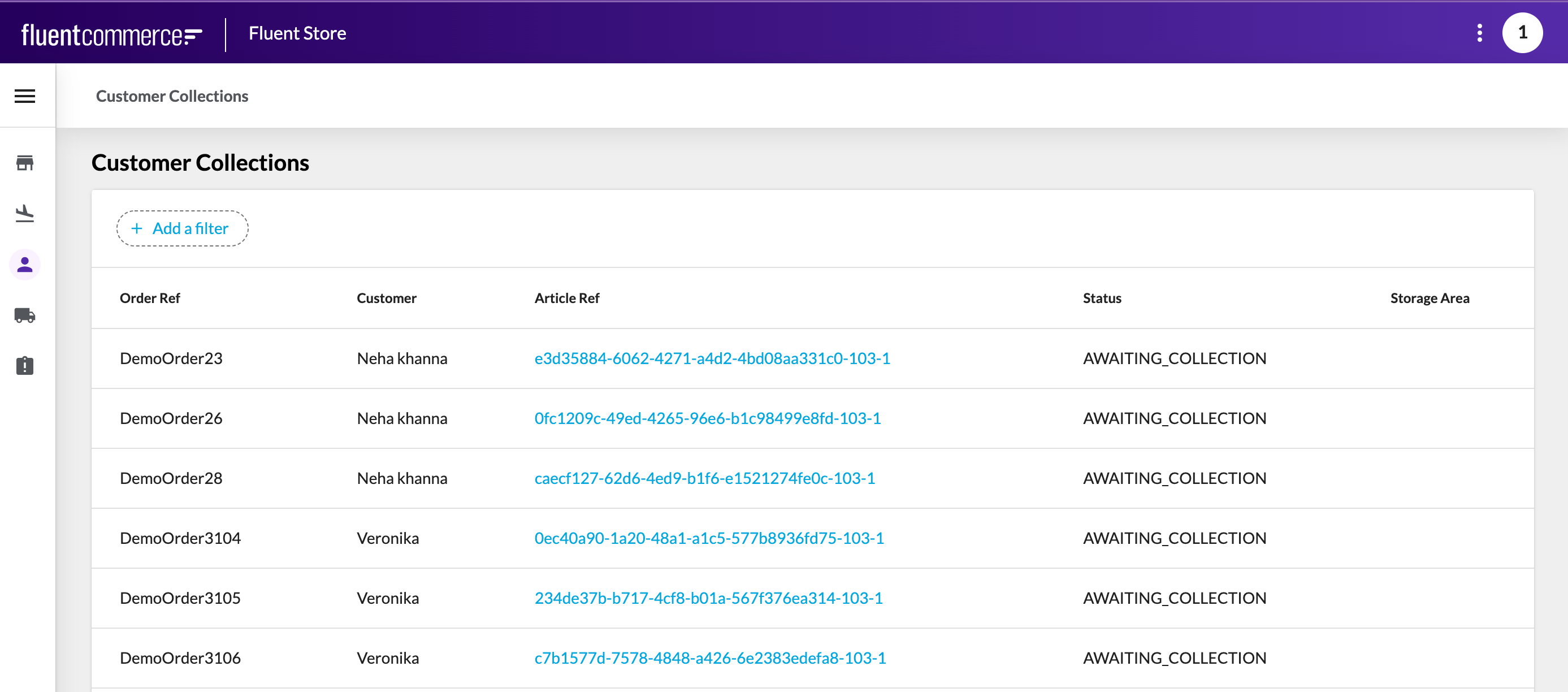 Once the customer arrives in store to collect their order, the store user refers to the Customer Collections screen to complete the collection process. The store user can search for the customer's order using the available search parameters like order number, email, name or phone number.Alternatively, the store user could scan the barcode on the collection email sent to the customer. The parcel is marked as
`collected` after scanning the barcode of the ordered article. To enable scanning functionality checkout USB Barcode Scanner ComponentWhen searching for the customer's order, the Store associate views all orders awaiting collection that match the search criteria and selects the desired order to mark it as `collected`.Once the order is selected, the application navigates to the order details screen, as seen in the screenshot below. At this stage, the store user can mark the order as `collected` and also reprint the packing slip and the shipping label.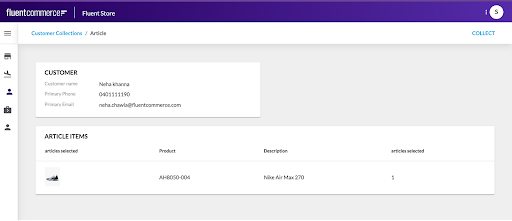 In a scenario where there are multiple orders awaiting collection by a customer, the store user could alternatively hand over all the order articles to the customer and use the bulk collect feature of this screen to mark all articles as
`collected` in a single click.