How-to GuideStep-by-step guides to achieve a specific scenario or setup.
Extend
Authors:
Randy Chan, Cille Schliebitz, Anita Gu
Changed on:
29 Aug 2025
Key Points
Each location has an opening hours setup that can be used for store activities. One activity could be during the fulfillment allocation phase, where the fulfillment expiry time for a store is calculated, giving store staff sufficient time to process the order before it expires.
Since opening hours can change week by week, we have created this guide to showcase how you can enable Store Managers to make these changes directly in the Fluent Store Web App.
Steps
Except as otherwise stated in the Extend Knowledge Content site policy, the content on this page is licensed under the Creative Commons Attribution 4.0 Licence, and any code samples that appear on this page are licensed under the Apache 2.0 Licence, unless any code sample forms part of the Fluent Order Management Platform code. Neither of these licences apply to any content on any other page that can be reached via a link on this page unless otherwise specified on that other page. If you wish to use any of the Extend KnowledgeContent, you must do so in compliance with the licenses referred to above and the Extend Knowledge Content site policy, including attribution in the manner set out on this page.
Before implementing this feature in OMS Store, please ensure that this feature is suitable for the business' needs
What to Expect
Since we will be using the `updateLocation` mutation to update `location` and subsequently `openingSchedule`, we can write a custom UI Component to display the opening schedule in the UI, allowing users to update opening hours.Here is a list of actions to implement this feature:
Determine if it is feasible via Web App and GraphQL.
Create a new role with the necessary permissions.
Assign the new role to the user.
Add the manifest reference link into the store setting
Create a new manifest setting to display the location details and openingSchedule.
Create an `OpeningSchedule` Component that maps to the new manifest.
Step 1. Determine if the mutation is feasible via Web App and GraphQL.
By looking at the GraphQL reference docs, we can see that the `updateLocation` mutation can update the `openingSchedule`.
Step 2. Create a new role with the necessary permissions
Next, we need to give the necessary permissions to the user; `LOCATION_VIEW`, `LOCATION_UPDATE`, `OPENINGSCHEDULE_VIEW` and `OPENINGSCHEDULE_UPDATE`. To do this, create a new Role:
Step 3. Assign the new role to the user
Once the new role is created, assign the new role to the store manager by using `updateUser` mutation:
Step 4. Add the manifest reference link into the store setting
Add the manifest reference link that you are about to create in the store setting: `fc.mystique.manifest.store`
Step 5. Create a new manifest setting to display the location details and openingSchedule
Create a new manifest setting which going to display the location details and `openingSchedule`:
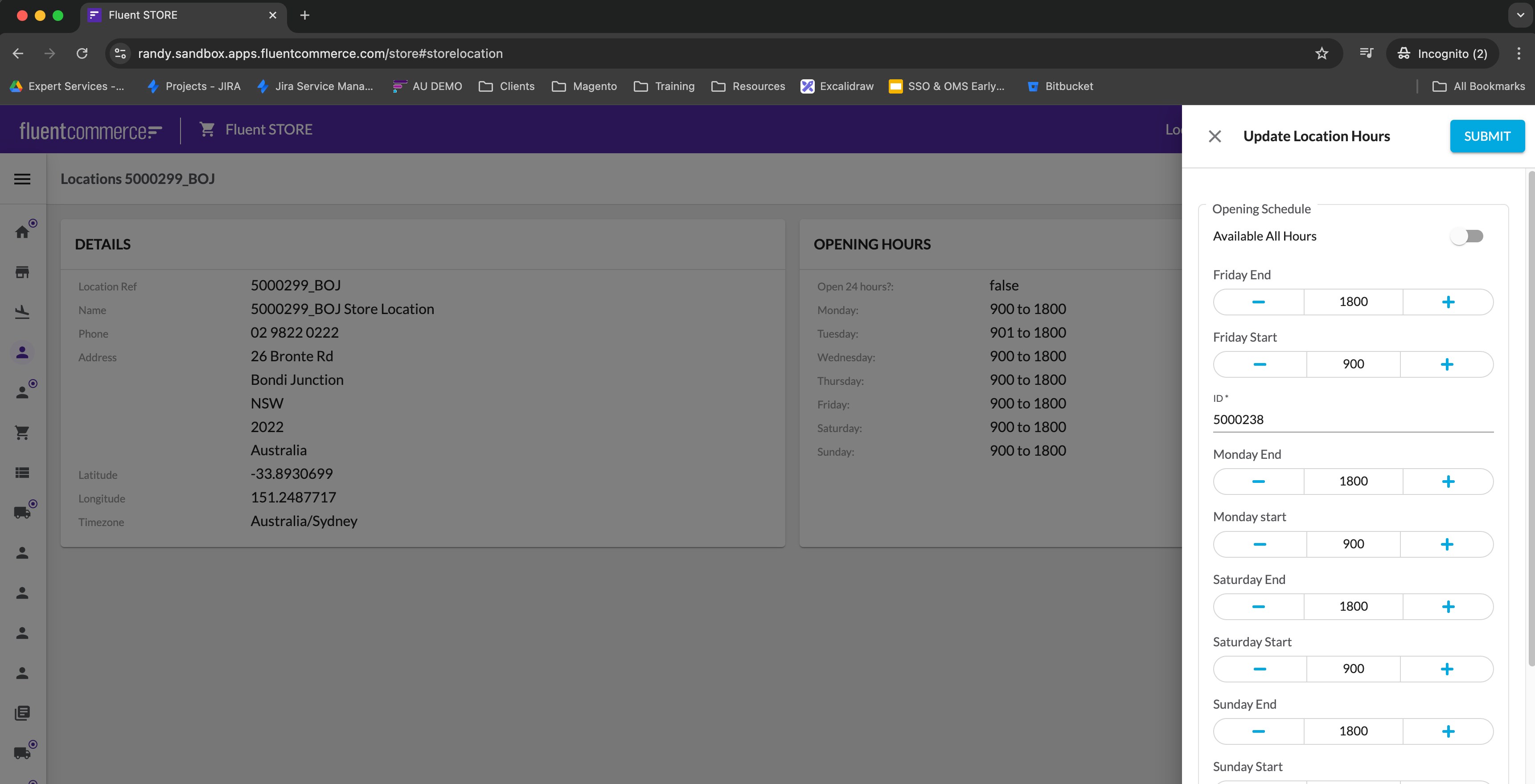
If you open the Fluent Store Web App and navigate to the location detail screen:The default update location mutation does provide a high-level UI for updating the opening schedule. The next step will demonstrate how to fine tune the visibility of the field.
Step 6: Create the openingSchedule component
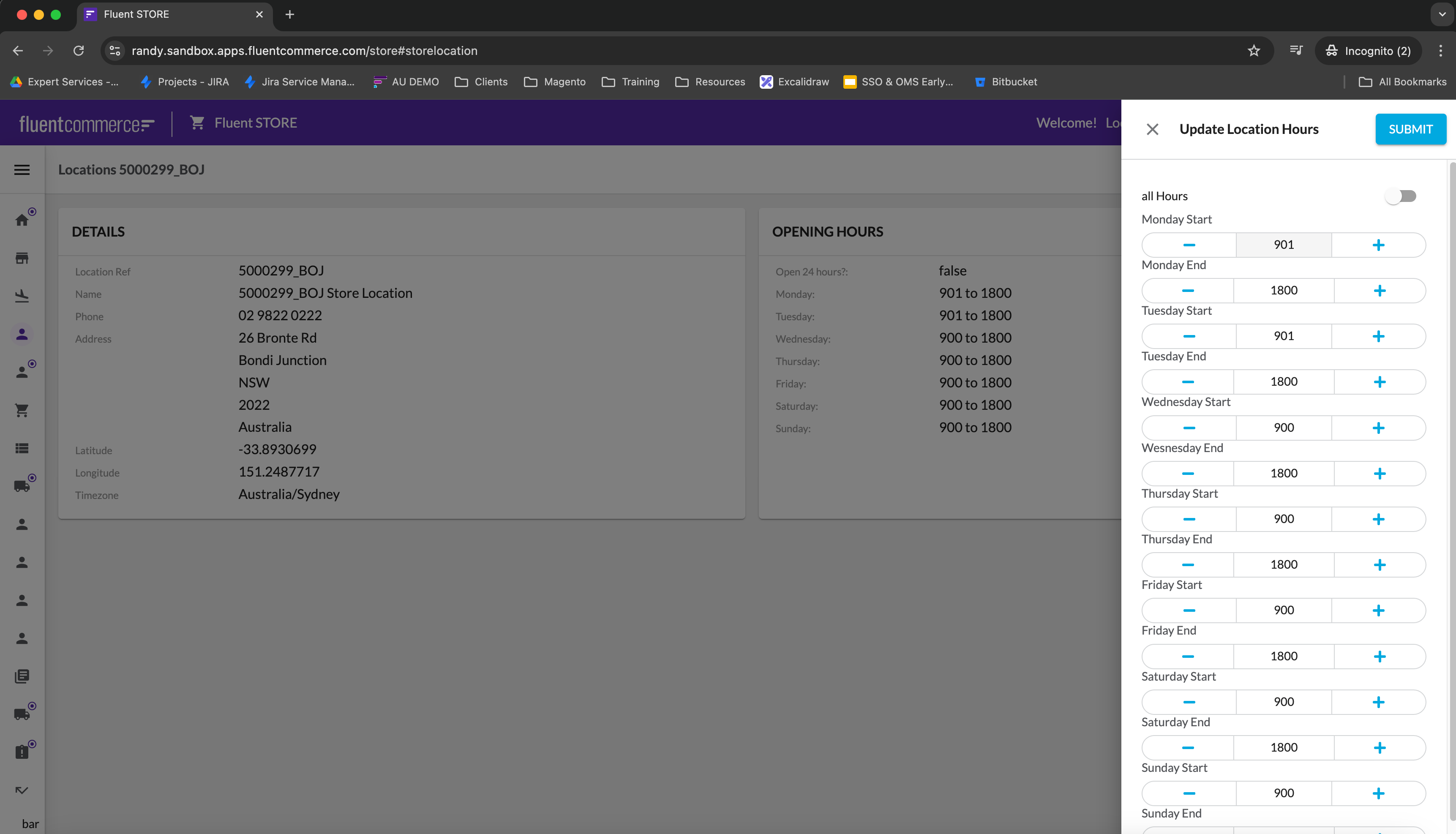
Open the Component SDK and create a new file: `OpeningSchedule.tsx`:Add the following code snippet to `index.tsx`:Once everything is saved, use the `yarn start` command and refresh the Fluent Store browser. The new component should now be displayed:Now, the store user can update the location opening schedule hours via UI.




 What to Expect