
UX Framework (eLearning)
Topic
Changed on:
1 Nov 2024
Overview
This course introduces the Fluent OMX UX Framework, and aims to enable business and functional consultants to configure custom Web Apps on the Fluent OMX Platform- Understand what the UX Framework is
- Understand how a Fluent Web App is constructed
- Understand what the Component Library is
- Be able to Configure the Manifest document
Summary
- Why did we build it?
How does the OMX UX Framework work?
Author:
Fluent Commerce
Changed on:
18 Oct 2024
Overview
[Warning: empty required content area]Key points
[Warning: empty required content area]Structure of a Fluent Web App
Changed on:
23 Sept 2024
Overview
[Warning: empty required content area]Key points
[Warning: empty required content area]Introduction to the Component Library
Changed on:
23 Sept 2024
Overview
The OMX Component Library is a suite of UI Components, ready to be configured and used in Fluent Web Apps.Unlike a standard UI Component, Fluent Components are built to natively interact with the Fluent Platform.The Library contains a number of different types of Components, including:- Foundation Components, such as Page Components which form the base of a screen
- Content Components for displaying data and media
- Layout Components for structuring pages
- Interaction Components for capturing user input
Key points
- Foundation Components, such as Page Components which form the base of a screen
- Content Components for displaying data and media
- Layout Components for structuring pages
- Interaction Components for capturing user input
Learn more about the Foundation, Content, Layout and Interaction Components:Foundation ComponentsContent ComponentsLayout ComponentsInteraction Components
Additionally, there is a Library of Field Components which are automatically rendered in User Action forms:
Additionally, there is a Library of Field Components which are automatically rendered in User Action forms:
Foundation Components
Changed on:
23 Sept 2024
Overview
Foundation Components are a category of components within the OMX Component Library.Foundation Components are top level components that map to a specific URL path within the Web App.Page Components are the primary foundation component, as they layout the page area, and provide a content area for child components to be displayed.Key points
[Warning: empty required content area] FoundaPage components are mobile responsive, so the screens render perfectly for any device.Different Page Components are available within the Library, and you can create your own too. For example, you may wish to use a simple, clean page component with minimal header information or a more advanced wizard-style page to help users through a step-by-step process.Learn more about the Foundation Components
Content Components
Changed on:
23 Sept 2024
Overview
Content Components are components that display information, including data or media.They can range from simple card components to advanced multimedia or graphical components.
Key points
[Warning: empty required content area] Content Components typically display data from the configured Page query, but some may display information retrieved via a component specific API call.Content Components are typically added as descendants to Page components to form screens.Learn more about the Content Components
Layout Components
Changed on:
23 Sept 2024
Overview
[Warning: empty required content area]Key points
[Warning: empty required content area]Layout Components provide additional structural elements to the screen.For example, you may wish to layout your page into multiple sections, each with a header and actions. Or, you may want to display tabs which show different components or data based on which is active.
 Another example is to conditionally display components, based on an entity type for example.Like Foundation Components, Layout Components have descendants, which identify what should be displayed for that layout.Learn more about the Layout Components
Or, you may want to display tabs which show different components or data based on which is active.Another example is to conditionally display components, based on an entity type for example.Like Foundation Components, Layout Components have descendants, which identify what should be displayed for that layout.Learn more about the Layout ComponentsInteraction Components
Changed on:
23 Sept 2024
Overview
[Warning: empty required content area]Key points
[Warning: empty required content area]Interaction Components allow users to interact with the OMS.Interaction Components could be a form to capture information, or a button to execute an action.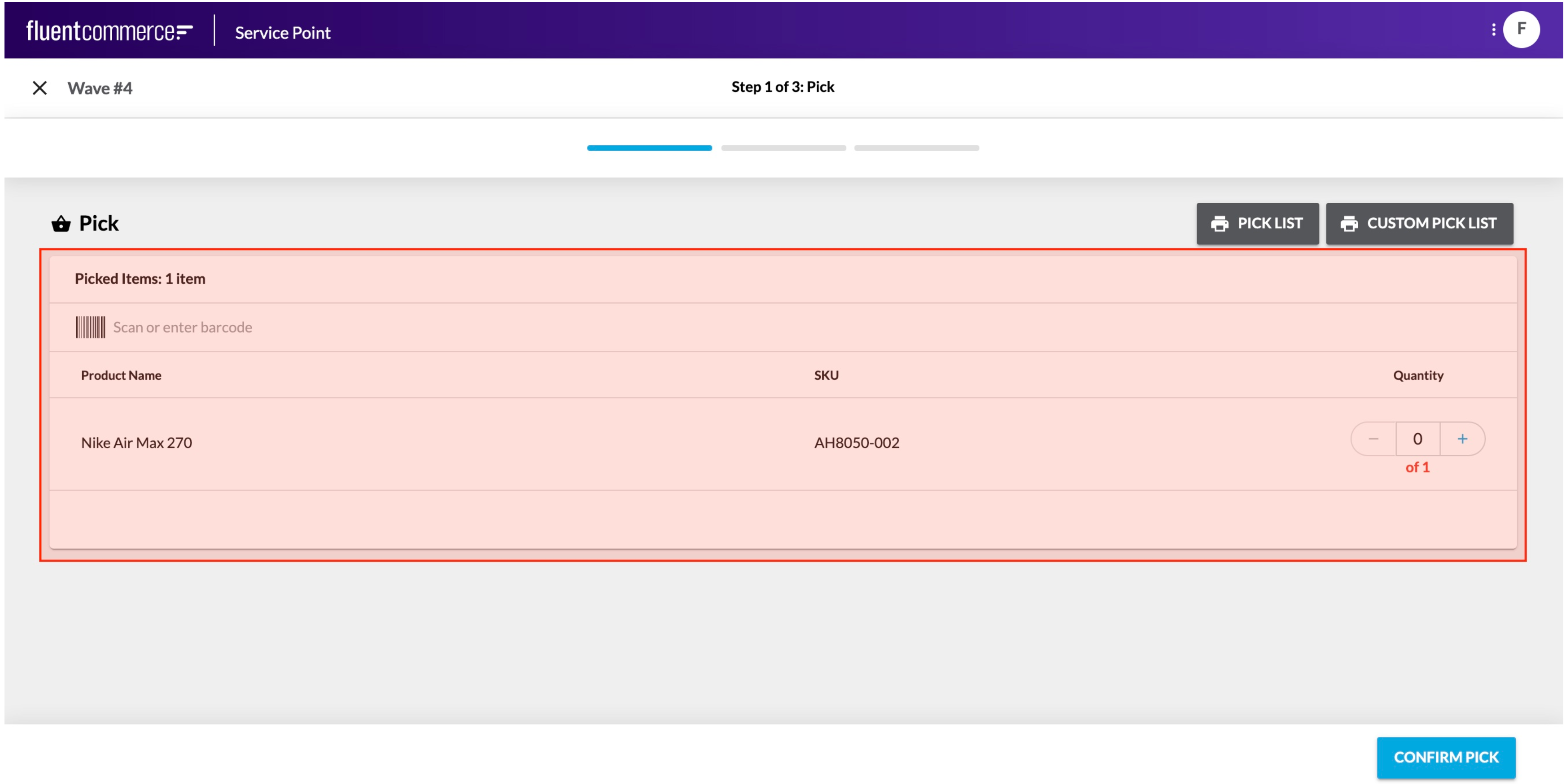
 These are not to be confused with the standard user actions, which display buttons in the page header, and slide out a right hand drawer for form display.Rather, these components can be added directly to a screen just like any other component.Learn more about the Interaction Components
These are not to be confused with the standard user actions, which display buttons in the page header, and slide out a right hand drawer for form display.Rather, these components can be added directly to a screen just like any other component.Learn more about the Interaction ComponentsField Components
Changed on:
23 Sept 2024
Overview
[Warning: empty required content area]Key points
[Warning: empty required content area]Field Components are a different kind of component all together.They cannot be configured via the manifest. Rather, they are automatically rendered based on the data type to be captured.Field Components are essentially form based elements. They could be as simple as a text box, or more advanced with multiple input fields and types.Field Components are key in delivering flexibility and enhanced user experience to complex user actions driven by the workflow. Workflows can require complex data input for the expected trigger event, and Field components enable full control over the user experience provided for those cases. Example:
In the screenshot above, the Requested Quantity and the Location selection are 2 parts to a single field, which map to an Event Attribute structured as follows:Since Field Components are rendered automatically based on the User Action definition, there is no configuration reference required.Learn more about the Field Components
Example:In the screenshot above, the Requested Quantity and the Location selection are 2 parts to a single field, which map to an Event Attribute structured as follows:Since Field Components are rendered automatically based on the User Action definition, there is no configuration reference required.Learn more about the Field Components
Download the VS Code Workspace for configuring Manifests
Changed on:
23 Sept 2024
Overview
We've provided a VS Code Workspace project, which comes preconfigured with the Manifest Schemas to enable Auto-Complete in VS Code.Simply download the attached Zip file, extract it on your computer, and open the workspace file in VS Code.Once complete, type "Done" into the "Your Response/Notes" form, select "Movyn John OR Randy Chan" as your instructor, and then click "Submit Assignment".Please Note:Before you can start following the online course practically, you will need your Fluent Account credentials.If you have not yet received your credentials, please type "Waiting for Credentials" into the response form, or email learning@fluentcommerce.com to request them.
Please allow up to 48 hours to receive the email with details.
Key points
[Warning: empty required content area][Warning: empty required content area]
Introduction to the Manifest Document
Changed on:
23 Sept 2024
Overview
[Warning: empty required content area]Key points
[Warning: empty required content area]Top Level Manifest Structure
Changed on:
23 Sept 2024
Overview
There are 2 types of manifest document format. The primary type is the main web application manifest, and the second type is a fragment which can be referenced from the main Manifest document.Key points
[Warning: empty required content area]There are 2 types of manifest document format. The primary type is the main web application manifest, and the second type is a fragment which can be referenced from the main Manifest document.The main manifest document structure is as follows:
 The primary Route type is a page route. This defines a specific page to display when the user clicks on the navigation item.
 Finally, there are Reference routes, which provide manifest fragmentation capability, so that you do not need to manage the whole UI configuration in a single (and very large) JSON document.
For more information, and to learn how to configure each part of the Manifest document, see the Configuration Guide.
`{`` "manifestVersion": "2.0",`` "name": "store",`` "title": "Fluent Store",`` "context": {`` "level": "location"`` },`` "routes": MystiqueRoute[]``}`The required fields include:- manifestVersion
- name
- title
- context
- routes
The primary Route type is a page route. This defines a specific page to display when the user clicks on the navigation item.Finally, there are Reference routes, which provide manifest fragmentation capability, so that you do not need to manage the whole UI configuration in a single (and very large) JSON document.`{`` "type": "reference",`` "settingName": "fc.mystique.manifest.servicepoint.fragment.pickandpack"``}`The structure of a fragment Manifest is as follows:`{`` "manifestVersion": "2.0",`` "routes": MystiqueRoutes[]``}`Finally, the Manifest document can also be configured to read custom plugins containing custom components referenced within the Manifest.`"plugins": [{`` "name": "Example",`` "src": "https://example.com/bundle.js"``}]`For more information, and to learn how to configure each part of the Manifest document, see the Configuration Guide.
Creating a new Manifest Fragment
Changed on:
23 Sept 2024
Overview
[Warning: empty required content area]Key points
[Warning: empty required content area]Add a Component to a Page
Changed on:
23 Sept 2024
Overview
We now need to display all the Storage Areas associated to this Store.To do this, we'll use the standard List Component provided by the Component Library.First, let's add the component to our page...Note: This video does not have audioKey points
[Warning: empty required content area]Configure a Data Source for your Page
Changed on:
23 Sept 2024
Overview
In order to show data in the Storage Areas List, we need to configure a data source.Components on a page can reference a data source from a query defined on the Page Component.First, we'll configure a page query, to retrieve the currently active Location's associated Storage Areas.The`data` object on the Page Route takes a `query` and a `variables` object for defining a GraphQL Query.`"data": {``"query": "query locationStorageAreas ($locationRef: String!) { location (ref: $locationRef) { id ref storageAreas { edges { node { id name status type } } } } }",``"variables": {``"locationRef": "{{activeLocation.ref}}"``}``}`You'll notice the use of a special variable called `{{activeLocation.ref}}` above. Since this Web App Context is "location", you can access the currently active context using the `activeLocation` object. This provides access to the Location Id, Ref, and Primary Address.Once the Page query is defined, go to the Component configuration, and add a `dataSource` field. The `dataSource` for the list should be set to the `storageAreas` connection on the `location` query path: `location.storageAreas` `"dataSource": "location.storageAreas"`With the data source configured, all that's left is to update the fields to be displayed in the list with dynamic values. We'll display the Name, Type, and Status from the Storage Area.This is done by specifying the field of each node in the Storage Areas connection: `{{node.name}}` `"attributes": [``{``"label": "Name",``"value": "{{node.name}}"``},``{``"label": "Type",``"value": "{{node.type}}"``},``{``"label": "Status",``"value": "{{node.status}}"``}``]`See this in action in the video below...Note: This video does not have audio.Key points
[Warning: empty required content area]Adding a Details Page
Changed on:
23 Sept 2024
Overview
In this lesson, we'll show you how to create a details page for a specific item in a list, and hyperlink the list to the detail page.Note: This video does have audio.Key points
[Warning: empty required content area]Configure the components on the page
Changed on:
23 Sept 2024
Overview
Next we'll configure our Details page with a page query, similarly to the listing page.For the details page, we'll query the storageAreaById query, and retrieve the associated articles connection.Watch below to see this in action...Note: This video does not have audioKey points
[Warning: empty required content area]Working with Dynamic Values
Changed on:
30 Apr 2025
Overview
The Framework provides some useful features for working with dynamic data.First, let's consider the Date and Time based data. The Framework provides a useful dateStringFormatter to help format the raw date values in more readable forms.Take a look at the follow video to see this in action.Note: Currently the ability to associate an Article with a Storage Area is not supported in the Training Accounts. This will be resolved in future.Note: This video does not have audio.Key points
[Warning: empty required content area]Working with an Array Item
Changed on:
23 Sept 2024
Overview
There are also some useful features for working with arrays. Typically you can access an array item by its index as follows:`node.attributes.0.value`This works on edges too: `node.aticles.edges.0.node.ref`Now, you can retrieve Attributes by Name: `node.attributes.byName.Size`In our example, the Article associated to the Storage Area contains an attribute named "FulfilmentType". See how we can show this in the Articles list below.Note: This video does not have audio.Key points
[Warning: empty required content area]Configure i18n language translation
Changed on:
23 Sept 2024
