Store Fulfilment
Essential knowledge
Authors:
Fluent Commerce, Esma Tuzovic
Changed on:
1 Nov 2024
Overview
[Warning: empty required content area]Key points
[Warning: empty required content area]Introduction to Store fulfillment
Overview of Store Fulfilment
Where the 'Store Fulfilment' Module sits within Fluent Order Management
A diagram of the main layers of Fluent Order Management is shown below. As you can see, Store is one of the core modules of the platform providing capabilities of store fulfilment: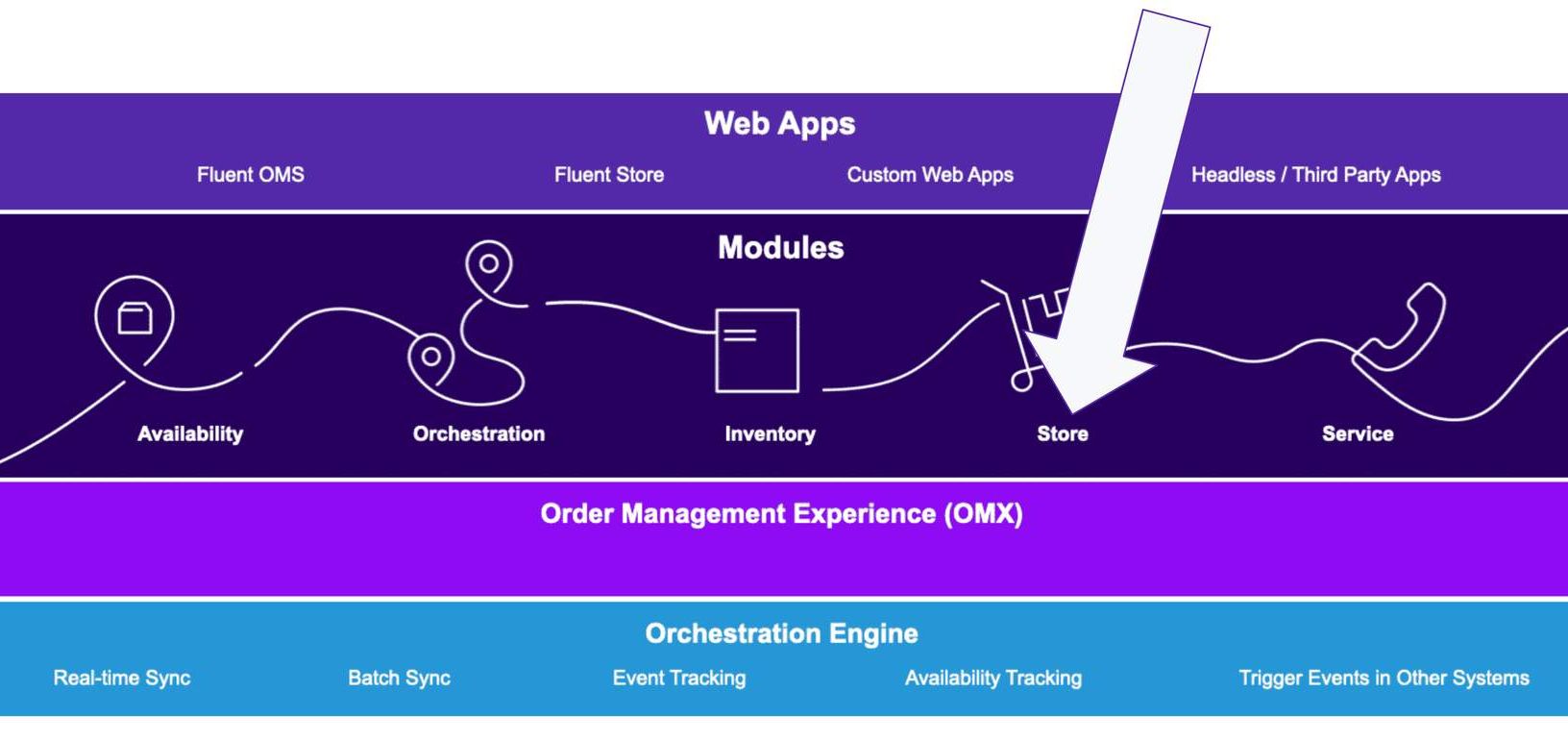
Overview of the Store Fulfilment
'Store Fulfilment' enables stores to function as fulfilment locations by bringing Pick, Pack, and Dispatch capabilities to the store context. It also allows store staff to manage collections and arrivals in the store. Through this module, retailers can expand their fulfilment networks and improve the consumer experience by utilising existing store stock and fulfilling orders in closer proximity to the consumer.Fluent Store is the in-store responsive web application that provides the user interface to fulfil orders placed from anywhere. Together with the Store Fulfilment module, they provide store staff with end-to-end order management capabilities.Key features
 The starting point (or reference features) provided by the Store Fulfilment module include:
- Pick, Pack and Dispatch
- Arrivals
- Customer Collections
- Carrier (or Courier) Collections
- Store fulfilment options
- Store-to-Store transfers
- Ship-to-Store
- Fulfil-from-Store
- Ship-from-Store (or Home Delivery)
- In-store Pick-up (or Click and collect)
Extension of Store fulfilment's capabilities is through Software Development Kits (SDKs). You'll learn about what's possible through extension as you progress through the course.
How Store fulfilment works
Overview of high-level entities
High-level entities include:- Fulfilment
- Wave
- Article
- Consignment
As found in larger fulfilment locations, Store Fulfilment utilises the concept of Wave Picking, to allow the store staff to manage a number of orders at a time.
A Wave workflow facilitates the pick, pack, and dispatch process for the selected number of orders, and updates the relevant fulfilment status through the Order workflow as each step is completed.
Once a wave is complete, the customer and courier collections interact with the Order workflow, managing the lifecycle of each article (or parcel), and consignments, should the articles (or parcels) need to be shipped to another location.
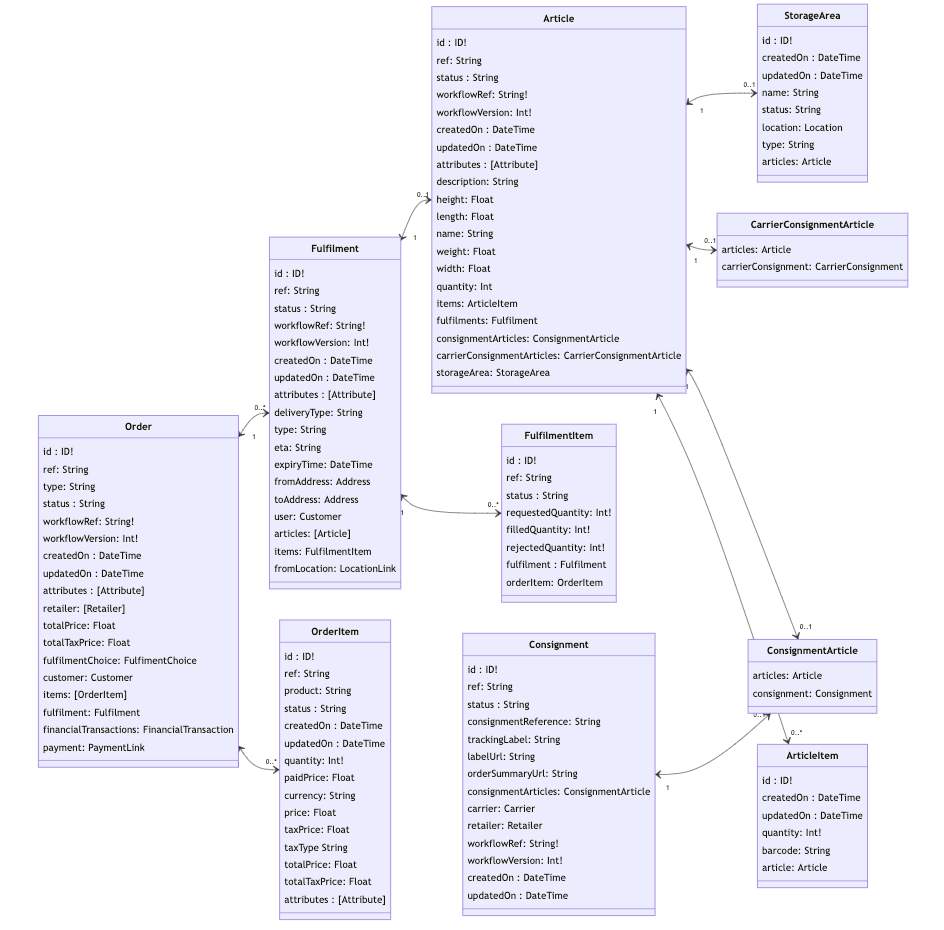
Pick, Pack & Dispatch
Overview — Pick, Pack & Dispatch
 The store fulfilment process includes picking, packing and dispatching fulfilments for click and collect and home delivery orders.Concepts you'll encounter in this lesson:
- Fulfilment
- Home Delivery
- Click and Collect
- Wave
- Pick
- Pack
- Dispatch
The 'Store Fulfilment' module supports a Wave picking process to group orders together into waves for optimal picking by Store staff.
▶ Why use Waves to group orders for picking? Instead of picking each order individually, Waves helps facilitate the picking of order items from multiple orders (not one at a time) making picking more faster and efficient. Optimal grouping of orders also helps to manage the demand of orders with the resources available at the time.▶ Wave prioritisation criteria prioritise fulfilments due to 'expire soon' Waves can be created with a specified number of orders (fulfilments), and selected based on various criteria. The sample Location workflow prioritises fulfilments that are due to expire soon to ensure that the order gets fulfilled by the location within the specified time limit. ▶ What happens if the expiry time is reached before the store has allocated the fulfilment to a Wave?If the expiry time is reached before the store has allocated the fulfilment to a wave for picking, the Order workflow would source a new fulfilment location for those items.
Selecting fulfilments for a wave can also be customised to support alternative criteria
Prioritise by delivery type - Pick by delivery type:- A fulfilment from a Click & Collect (CC) order gets prioritised over the fulfilment from a Home Delivery (HD) order.
- A fulfilment with a 1-hour delivery is prioritised over express delivery
- An express delivery is prioritised over standard delivery.
- A large retailer with many different departments finds it more optimal to prioritise its Wave according to department type — cosmetics, shoes, lingerie etc.
- A luxury goods retailer prioritises its Wave for VIP orders.
Picking
Let's learn about how fulfilments are assigned to a store location for picking
As covered previously in the Order Orchestration course, fulfilments are assigned to various locations based on the sourcing logic in the Order workflow — that is, they are assigned to stores that show available stock at the time of assignment. Once a fulfilment is assigned to a store, that fulfilment shows up in that store's 'ORDERS AWAITING PICK' screen — the fulfilment is now ready to be assigned to a Wave for picking.You'll now be taken through a journey of a Store Assistant completing Wave creation, Picking, Packing, and then preparing the order for dispatch.
First up, Wave creation
 1 - Check for any incoming ordersIn order for Jacob to check if any orders have come through, he opens the in-store web app, 'Fluent Store', and navigates to the 'Pick and Pack' dashboard.There are two 'ORDERS AWAITING PICK':
 - Home Delivery, HD-1659588029
- Click and Collect, CC-1659588024
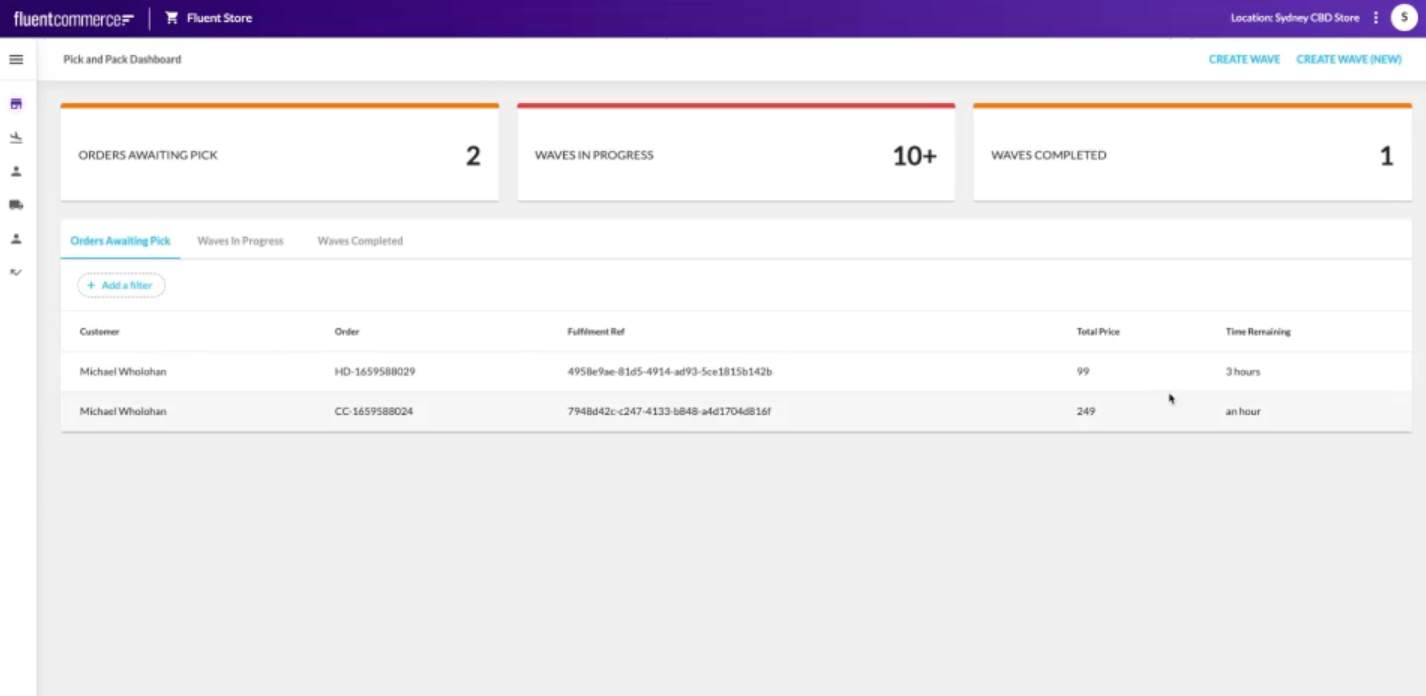
2 - Create a WaveThe fulfilment is now ready to be assigned to a Wave for picking. Recall that Wave prioritisation criteria prioritise fulfilments due to expire soon:Expiry time (time remaining) to complete pick, patch and dispatch:
- Home delivery, HD-1659588029 has a 3-hour window.
- Click and collect, CC-1659588024 has only a 1-hour window.
- When the Store Associate creates the Wave, Order status will be updated to PICK_PACK and respective fulfilments will be in ASSIGNED status.
- Inventory Quantity type will still be in RESERVED.
Let's proceed to the next step, Picking
A Picklist plays an important role during 'picking'
What is a Picklist?A Picklist contains details of the items needing picking by the Store Assistant for a particular Wave, and registering the items as confirmed or rejected while carrying out the picking process.Once all of the items have been picked and registered, they are taken to the location for packing.
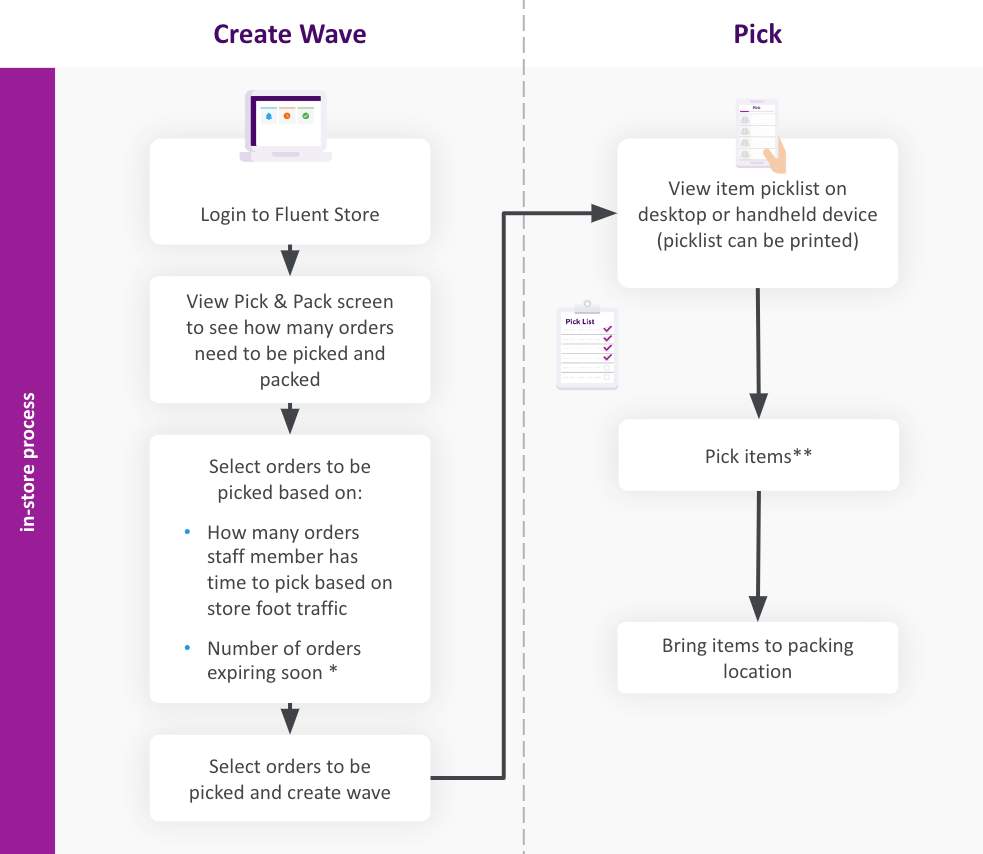
Let's continue on Jacob's journey as he completes the Pick step
3 - View / Access PicklistJacob uses a mobile device to access the 'Pick' screen where he is able to view all of the items in the picklist — 3 items in total appear on the picklist:- Womens Strynger Hoodie
- Mens Thunder Jacket
- Nike Trainers
 5 - Pick itemsWith his mobile in hand, Jacob picks each item located in the store making sure to register each item as either 'confirm' or 'reject' on the Picklist — all of the items are in stock so he is able to 'confirm' all of the items.Once the items have been picked, Jacob takes the items to the packing location.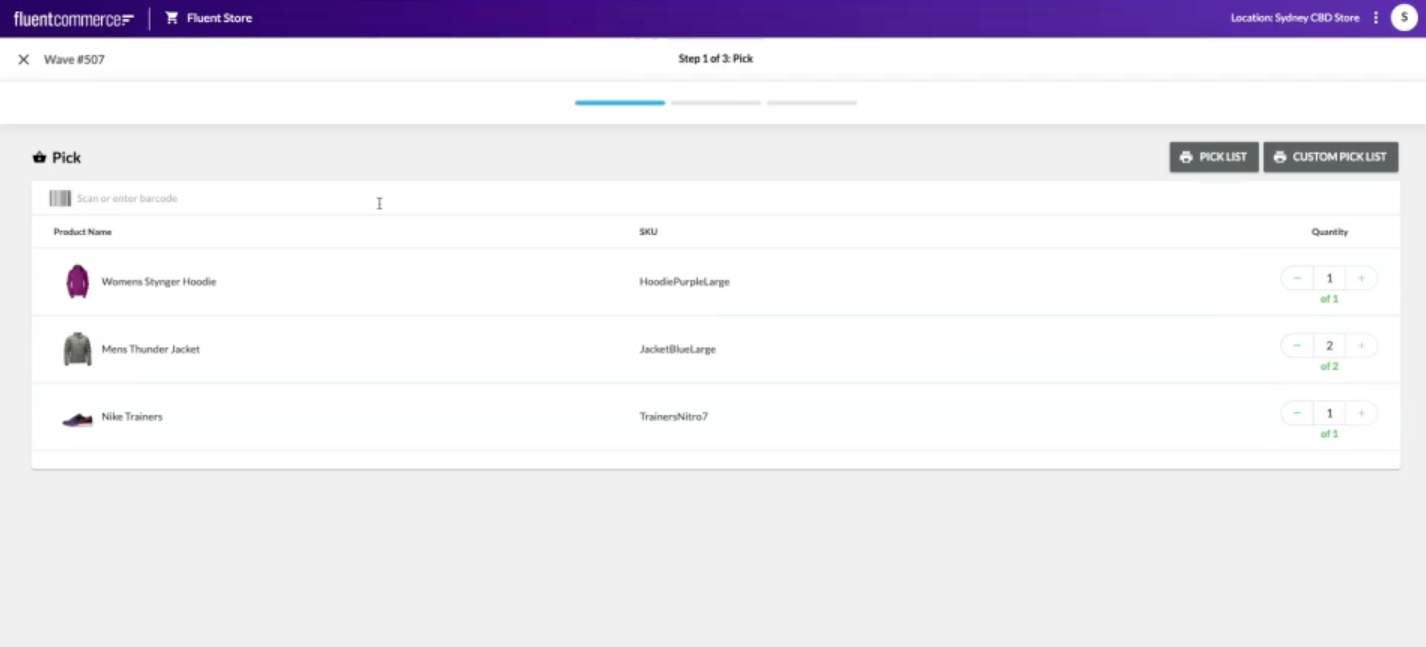
Status updates
- Once picking is complete on the order, Order status remains in PICK_PACK and respective fulfilments will be in FULFILLED status
- A new Inventory Quantity type SALE is created and will be in ACTIVE status.
- Inventory quantity type RESERVED will be moved to INACTIVE status.
Alternative scenarios — In the Store journey above you're shown a 'happy path' scenario. However, there are situations where this might not be the case
- What if an item on the picklist was no longer in stock?
- What if a defect was found in the Nike Trainers while performing the pick step and is now unsellable?
- What if one of the items on the picklist was sold off the shop floor before the order fulfilment could be completed?
A 'Short Pick' happens in scenarios where not all items are picked. Click 'Continue' to learn more
Short PickDuring picking the Store Assistant should set the correct quantities for items picked and if not all items are picked, the Order workflow will source a new fulfilment location for the rejected items — Items that are successfully picked will continue through the current process.Below you are shown a Picklist scenario where there is '1 rejected item':
 Status updatesOnce short-picking is complete on the order:
- Order status remains in PICK_PACK and respective fulfilments will be in PARTIALLY_FULFILLED stats.
- A new Inventory Quantity type SALE is created and will be in ACTIVE status.
- A new Inventory Quantity type CORRECTION will be created and will be in ACTIVE status. — this is for recording what has been short-picked.
- Inventory quantity type RESERVED will be moved to INACTIVE status.
- In the reference workflow, a new fulfilment will be created for the short picked item with status either ESCALATED (Rejected Location) or ASSIGN / AWAITING_WAVE (next available location).
Next up, Packing
Packing
Pack step begins after the Pick step is complete and involves packing items into parcels (articles) at the designated packing location
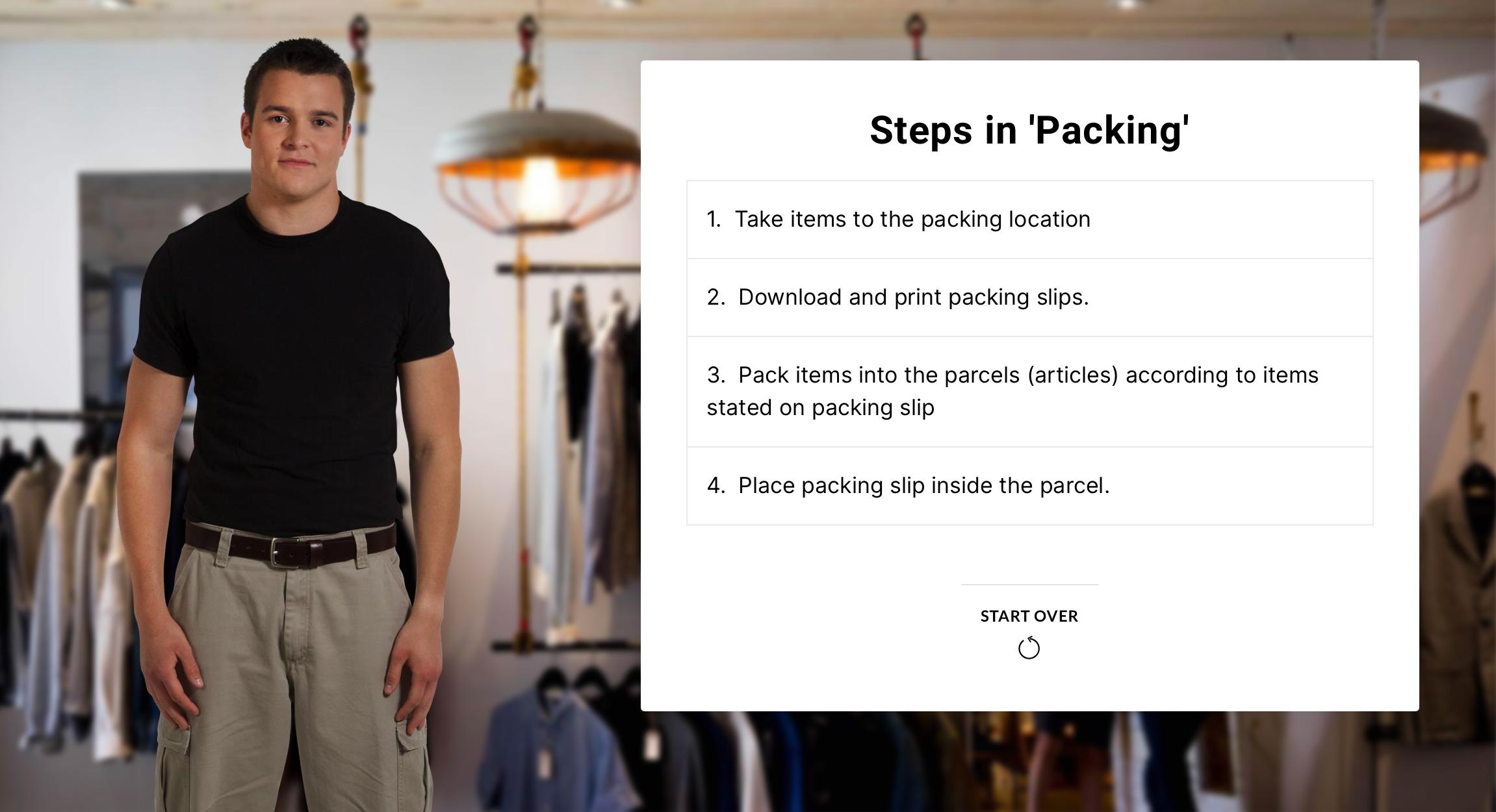
Packing slips are used to consolidate items into their respective orders
Once items are packed into their parcels (articles), the packing slip is placed inside of the parcel for the customer's reference.Note: If there are any items 'rejected' for a specific order, it will be displayed under 'Pending Items' on the packing slip to inform the customer that those items are not included in that particular parcel.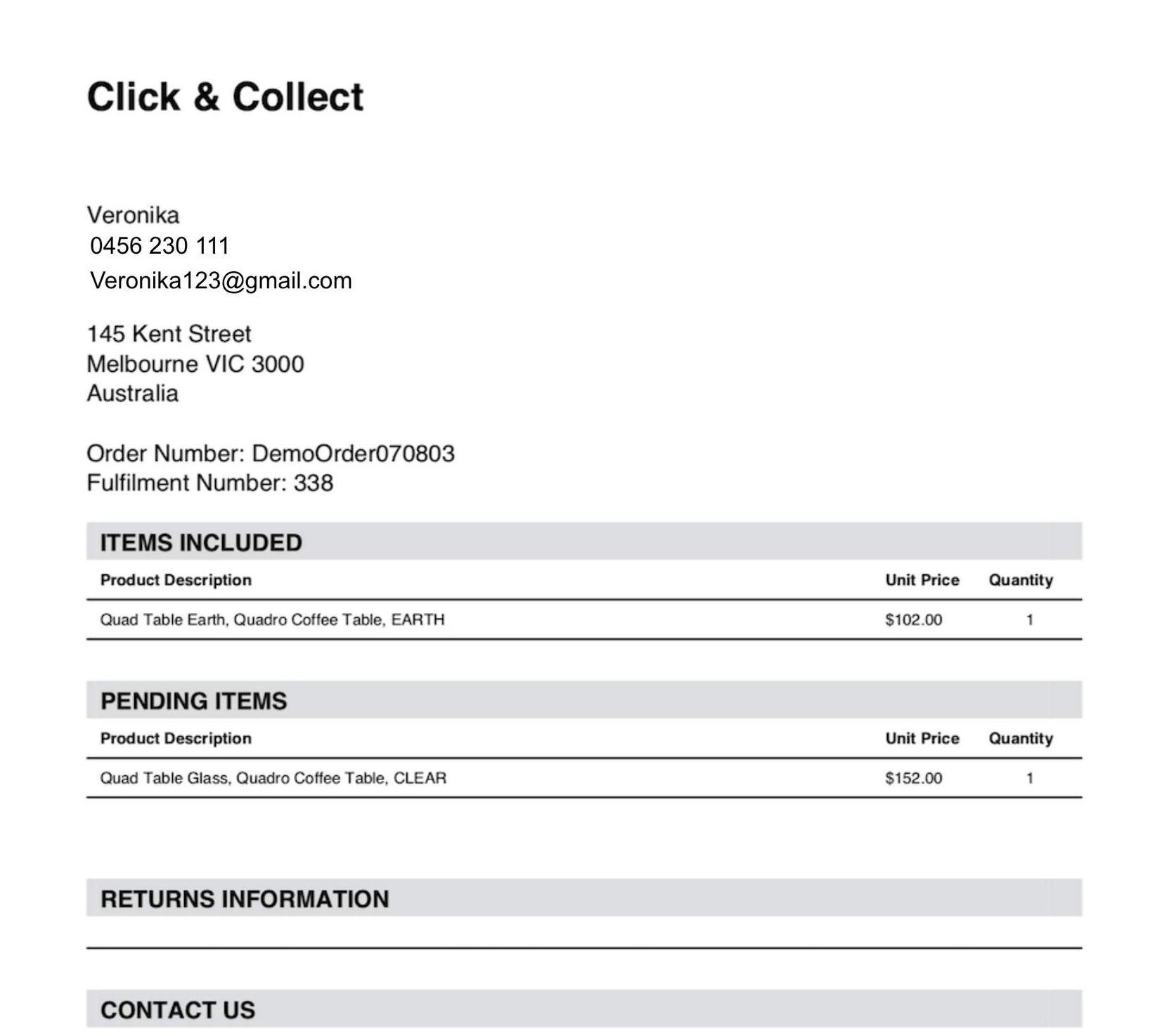
'Packing' is completed via the 'Pack' screen
 Status updates
- Once packing is complete, Order status remain in PICK_PACK and respective fulfilments will be in FULFILLED status
- Packing slip will be generated and the order is ready for dispatch.
Next step, 'Prepare for Dispatch'
Prepare for Dispatch
Once the articles (or parcels) have been packed, the Store Assistant should prepare the parcels for dispatch
1- Preparation for dispatch varies depending on collection requirements- Customer Collection In-store
- Customer's parcel is placed in the storage area.
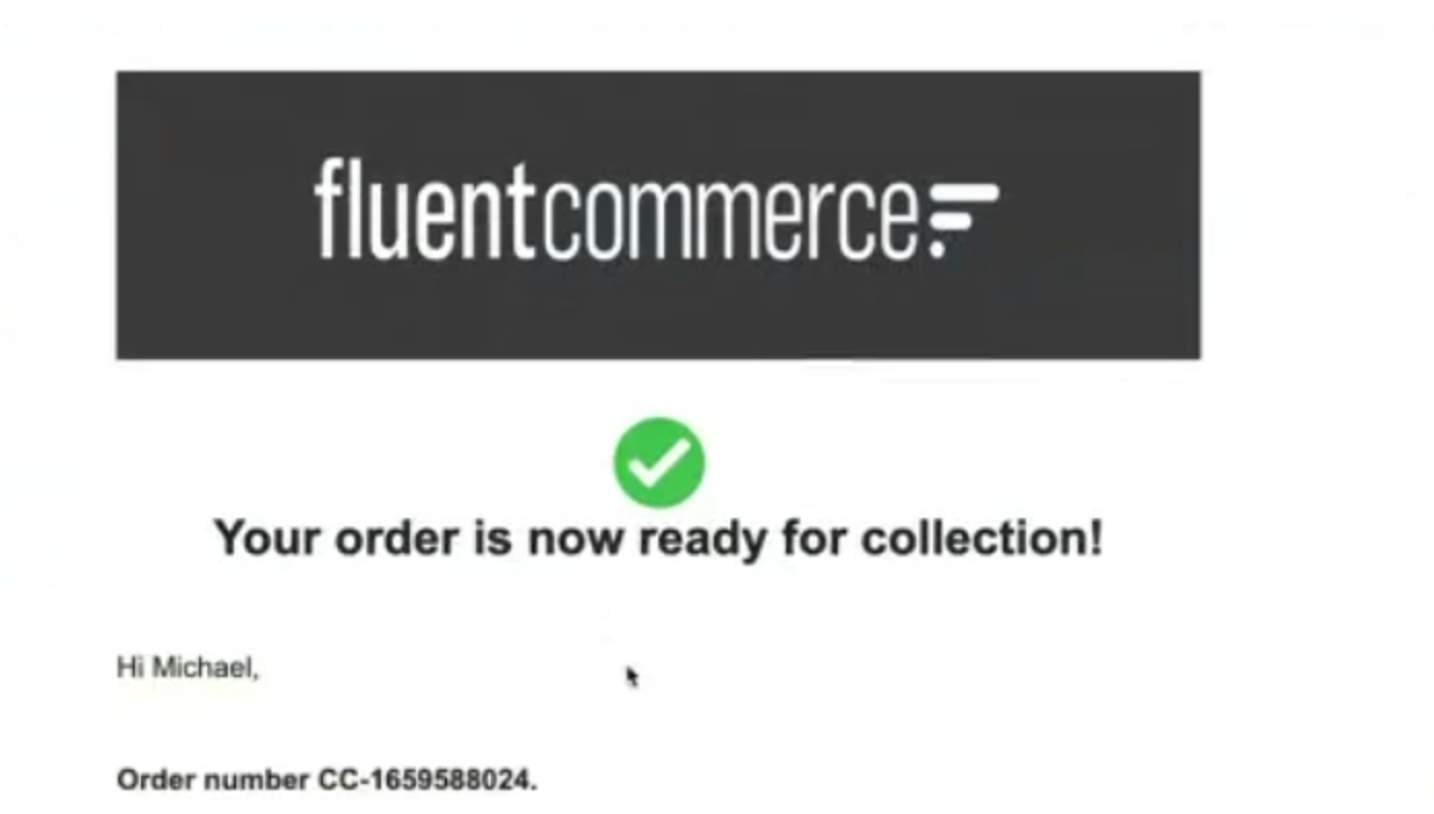
- An email and text message is sent out to the customer confirming their order is ready for collection.
- When the customer arrives to collect the item an ID check is carried out to confirm the customer's name, primary phone and email, and the article is marked as 'collected'.
- Wave is complete
 Status updates
- Status of fulfilment while in the storage area waiting for collection: AWAITING_CUTOMER_COLLECTION
2- Preparation for dispatch varies depending on collection requirementsA Carrier Collection is needed in a situation where articles (parcels) are to be shipped to another location, such as:
- Home Delivery orders
- Store-to-store transfers
- Order workflow may integrate with a carrier system to book a carrier and create a consignment.
- Once the carrier accepts the consignment request, consignment labels will become available.
- At this point labels can be downloaded and applied on the top of each parcel, then placed in the designated storage area ready for carrier collection.
- Wave is complete.
Status updates
- Once the carrier has acknowledged receiving the consignment details Fulfilment Status changes to: AWAITING_COURIER_COLECTION
- Consignment Status: ACTIVE_LODGED
- Wave workflow can update the Wave status to Complete.
- Fulfilment has now moved to FULFILLED status — awaiting carrier to accept the request
Starting point workflow
- Picking orders are initiated by creating a wave.
- Achieved by clicking on the CREATE WAVE user action.
- User action is available on the Dashboard page.
Status updatesConfirmed Orders for which Fulfilments are created and are in AWAITING_WAVE, will be assigned to respective stores for processing.
- Once Create Wave step is complete:
- When the Store Associate creates the Wave, the Order status will be updated to PICK_PACK and respective fulfilments will be in ASSIGNED status.
- Inventory Quantity type will still be in RESERVED status.
- Once Pick step is complete:
- When the Store Associate completely picks the items on the order Order status remains in PICK_PACK and respective fulfilments will be in FULFILLED status.
- Inventory Quantity type will move to SALE and will be in ACTIVE status.
- Inventory quantity type RESERVED will be moved to INACTIVE status.
- Once Pack step is complete:
- When the Store Associate packs the order, Order status remains in PICK_PACK and respective fulfilments will be in FULFILLED status.
- Inventory Quantity type will move to SALE and will be in ACTIVE status.
- Inventory quantity type RESERVED will be moved to INACTIVE status.
- Packing slip will be generated and the order is ready to dispatch.
- Once the order items are packed and the Store Associate clicks on BOOK Courier, if the order type is:
- Click and Collect (CC), the Parcel (or Article) will be moved to the pick-up storage area.
- Home Delivery (HD), the parcel (or Article) will be moved to the courier collection storage area.
Collections
Overview of Collections
In this section, we will briefly describe how both Customer Collection and Carrier Collection worksKey concepts:- Click & Collect / BOPIS
- (Home) Delivery
- Article (or Parcel)
- Storage Area
- Consignment
- Label
- Collection Point / Location
- Fulfilment Location
Use cases for collections supported by 'Store Fulfilment':
- Customer Collection for Click & Collect / BOPIS (Buy Online Pickup In Store), where the fulfilment location is the same as the pickup location
- Carrier (or Courier) Collection for Click & Collect / BOPIS where the fulfilment location is different to the pickup location
- Carrier (Or Courier) Collection for (Home) Delivery
Next up, how Customer Collection works
Customer Collections
How do customer collections work?
For articles which are packed and ready to be collected by a Customer in store, the article is usually stored in an awaiting collection area.When the customer arrives at the store, they are usually asked for some form or ID or an Order Number, and the Store Assistant can look up the orders awaiting collection using the Fluent Store web app.Upon confirmation of the Customer ID or Order Number, the store assistant hands over the parcel, and marks the article as Collected. The Order workflow updates the status of the article, and the fulfilment, and if all fulfilments are now complete, the Order will be updated to Completed.Next up, how courier collections work
Courier Collections
How do carrier collections work?
- When the article is dispatched at the end of the wave, the Order workflow will determine whether or not the article should be shipped to another location, and interact with a carrier system to book the courier. The Order workflow creates a consignment and a label for printing with a consignment number. The article will then be placed in a storage area for orders awaiting courier collection.
- When the Courier arrives in the store, the Store Assistant will look up the orders awaiting courier collection in the Fluent Store web app.
- Upon confirmation of the consignment number, the Store assistant hands over the parcel(s) to the courier, and marks the articles as 'collected' in the Fluent Store web app.
- The Order workflow will update the consignment status, the article status, and the fulfilment status. If integrated into the Order workflow, the carrier system may provide updates back to Fluent Order Management to complete the lifecycle of the consignment, article, fulfilment, and order, once the whole order delivery has been confirmed.
Store Arrivals
In the Arrivals phase, 'Store Fulfilment' supports store-to-store transfers (or ship-to-store) for use cases where the fulfilment location is not the same as the pick up location, or for consolidation purposesKey Concepts:- Article (or Parcel)
- Storage Area
- Label
- Collection Point / Pickup Location
- Fulfilment Location
- Consolidation Location
- ArrivalsHow 'Store Arrivals' worksIn circumstances where the fulfilment location is not the same as the pickup location, articles may be shipped from the fulfilment location to the pickup location. When this happens, the articles expected to arrive in the pickup store are visible on the Arrivals screen.
 When the article(s) arrive at the store, the Store Assistant can receive the parcels, and place them into a storage area for awaiting collection. The Store Assistant can use the Fluent Store web app to mark articles that have arrived in store. The Order workflow will update the status of the consignment, article, and fulfilment and the article(s) will then be visible in the Customer Collections screen in Fluent Store.