
Fluent OMS Web App
TopicTopics usually cover more ground than other articles.
Author:
Fluent Commerce
Changed on:
19 Aug 2025
Author:
Fluent Commerce
Changed on:
19 Aug 2025

Author:
Fluent Commerce
Changed on:
22 Oct 2025

Author:
Fluent Commerce
Changed on:
19 Aug 2025
Author:
Fluent Commerce
Changed on:
18 Aug 2025
 Selecting a fulfilment option opens the Fulfilment Option Details page. This view includes general details, addresses, linked fulfilment plans, products, and an activity log.


Author:
Fluent Commerce
Changed on:
30 July 2025
`Ref` opens the Product Catalogue Categories details page, which provides detailed information about the categories of a particular product catalogue. The detail view consists of the following tabs:


 Product CataloguesA Product Catalog stores all the Products a retailer wants to sell and contains information that helps identify each product (e.g., name, color, description, product code).A retailer can have one or more Product Catalogs containing all its products. Each product catalog type has a corresponding workflow, referred to as a 'Product catalogue workflow,' which orchestrates products in the catalog. The retailer can configure workflows to add their specific business logic.Product Catalog Entities
`Ref` opens the Product Catalogue details page, providing detailed information about the product catalogue.The detail view consists of the following tabs:


 FeaturesThe Products Section offers a set of features designed to help users efficiently manage products within the application.Manage Product CatalogsUsers can create and manage product catalogs within the Products Section to organize and maintain product information effectively.For step-by-step instructions on creating and editing product catalogs, refer to the guide:How to create and edit a Product Catalogue.
Author:
Yulia Andreyanova
Changed on:
29 Aug 2025

 The Unified View of Inventory offers powerful and flexible filters to refine search results:
 Clicking any quantity cell opens a Type History Drawer, displaying the history of changes for that inventory quantity type.
 Each inventory position contains an inner list of associated virtual positions, enabling a more granular view of inventory filtering by virtual catalog, available stock, and virtual stock statuses.
 From an inventory position, users can navigate to detailed inventory views:
 The Inventory View by Location page gives a clear and detailed look at a specific location’s inventory. Users can click on a location name from the Inventory Search page to access this view. The location reference will still show if someone doesn’t have the required permissions, but it won’t be clickable, keeping restricted information protected.This page provides the location’s address, working hours, and a full list of inventory positions. It also includes a filter panel—without the location filter—and a detailed inner list of virtual positions linked to each inventory entry. This ensures that all the key inventory details for that location are easy to find.Filters from the Inventory Search page carry over to this detailed view, making it easier to continue working with the same data. However, filters from the inner list do not apply. A breadcrumb link at the top allows users to return to the Inventory Search page, keeping any previously applied filters in place, even when switching between different details pages.
 The Inventory by Product page provides a detailed view of inventory information for a specific product. Users can click on the product name from the Inventory Search page to access this page. If the selected product catalog is incorrect or doesn’t include the product, navigation to the product’s details will be restricted, and only the product reference will be displayed without a clickable link.On the UVOI by Product page, users can see key product details, such as its name, status, category, and description, along with an image of the product. The page also features a filter panel—excluding the product filter—and an updated list of inventory positions, complete with their associated virtual positions.Filters applied on the Inventory Search page remain active on this page, helping users maintain their focus on relevant data. Inner list filters, however, do not carry over. A breadcrumb navigation link allows users to return to the Inventory Search page with their original filters preserved, even when moving between multiple details pages.
Author:
Fluent Commerce
Changed on:
29 Aug 2025
Author:
Fluent Commerce
Changed on:
6 Mar 2026
Authors:
Fluent Commerce, Kirill Gaiduk
Changed on:
4 Aug 2025

Author:
Fluent Commerce
Changed on:
25 Sept 2025
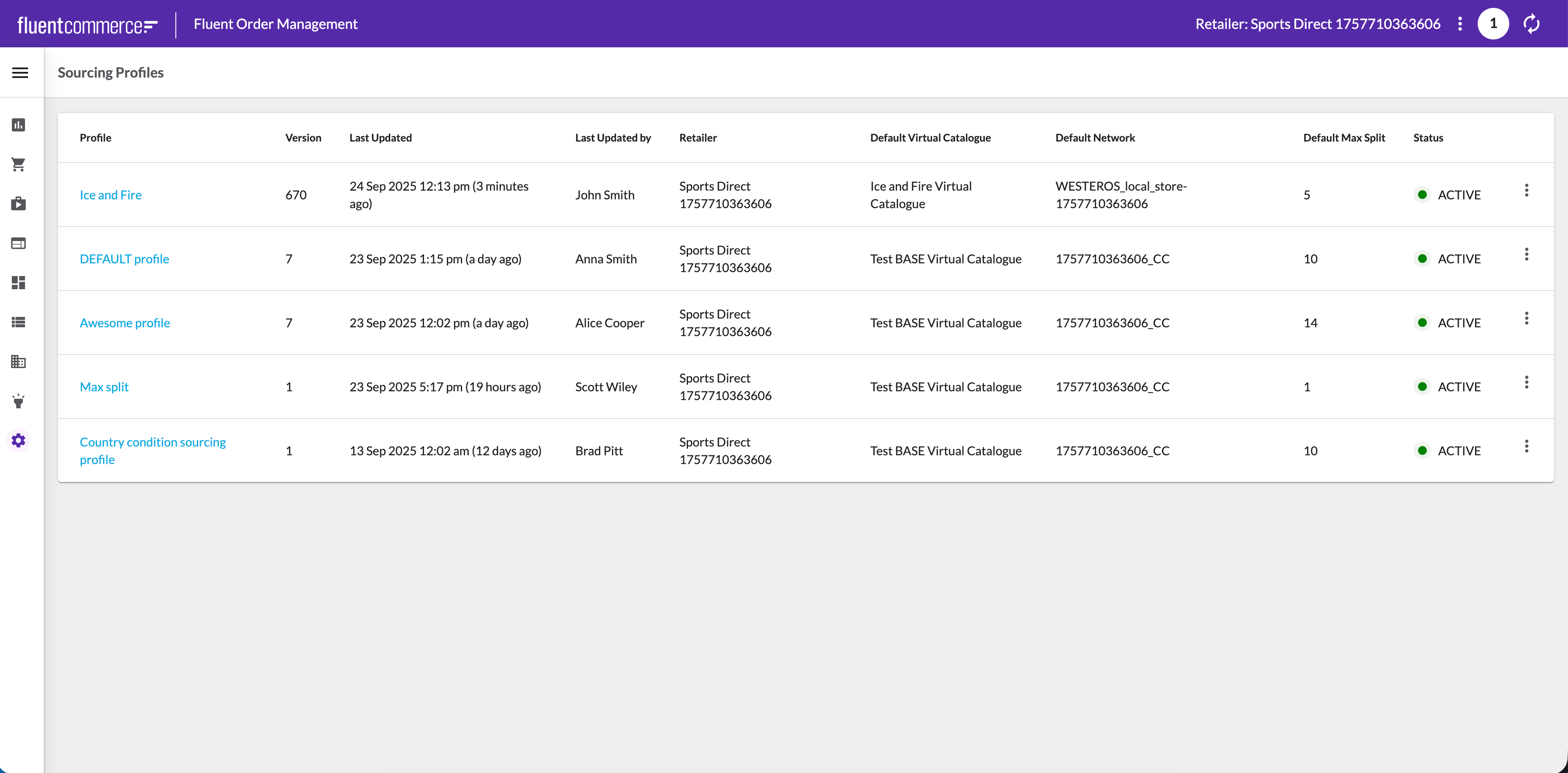 When a profile is opened, the Profile Details view is displayed. This view combines a summary of key attributes (such as default catalog, networks, and max split) with the profile’s current status and version information. Strategies are shown in the order they are executed, with primary and fallback strategies clearly distinguished for clarity.
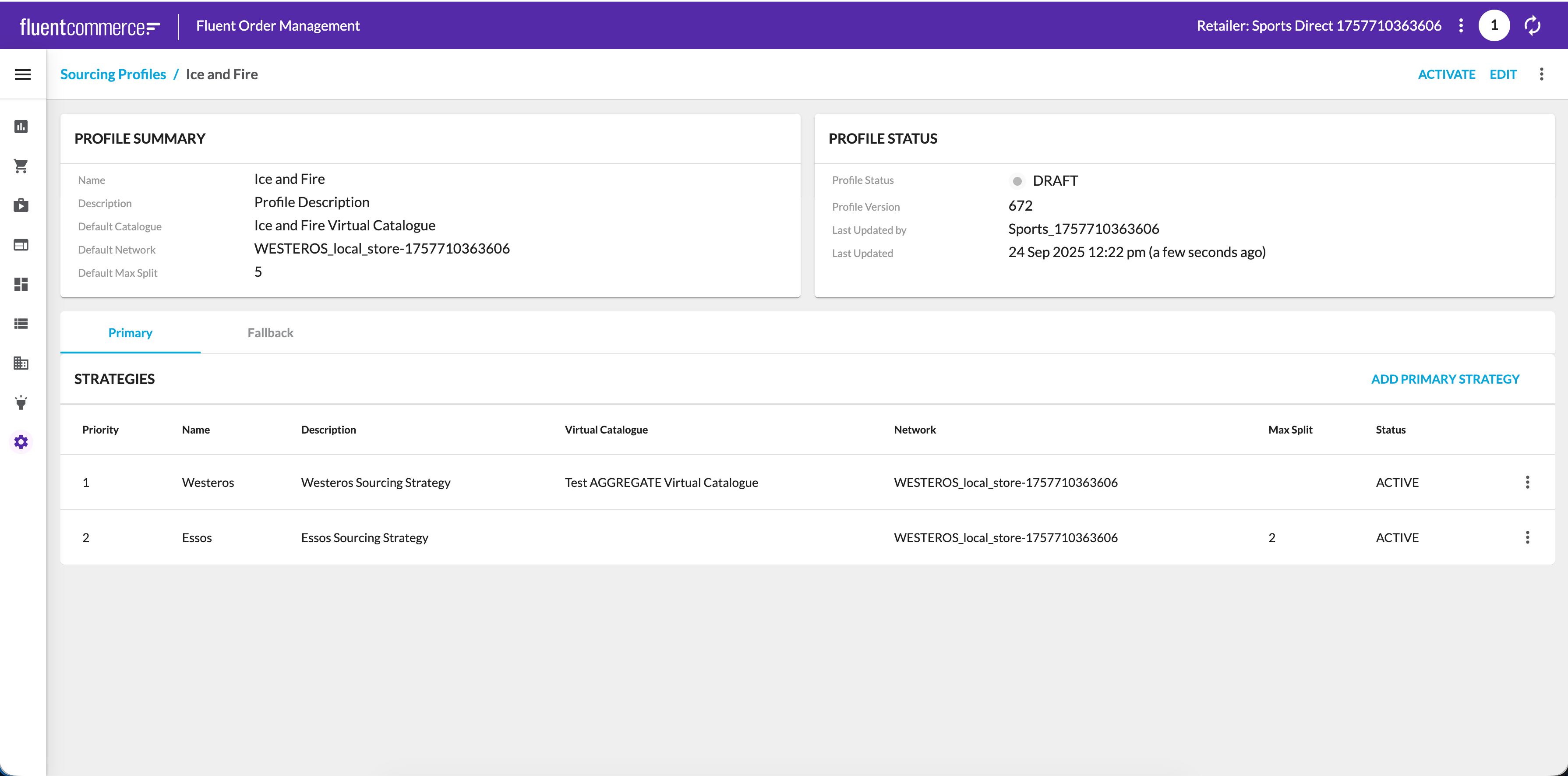 For a deeper overview of configuring and managing profiles, please see the full article on Sourcing Profiles.
 Clicking the Order Ref opens the Order Details page, which provides a comprehensive view of the selected order. This includes summary information, retailer details, customer details, collection or delivery information, fulfillments, order items, and additional tabs such as transactions, returns, comments, and activity.

`Escalated` state.The Escalated Fulfilments page lists all fulfilments currently in the escalated state. This view enables quick identification of orders requiring further action or investigation. Selecting a fulfilment opens the Fulfilment Details page, while selecting the related order reference opens the Order Details page. This allows direct navigation from the escalation record to the underlying fulfilment and order information.

 Clicking the Customer Name opens the Customer Details page, which displays detailed information about the selected customer, including personal information, account details, billing accounts, and order history.

 The Return Details page provides a complete overview of a selected return. It includes summary information, addresses, associated fulfilments, returned items, additional attributes if defined, and an activity log. From here, it is possible to navigate back to the returns list or into related records such as orders, credit memos, or fulfilments.
 The Return Fulfilment Details page shows how a return is processed, including its references, locations, and current status. Navigation is available directly from the Return Details page by selecting a fulfilment from the Return Fulfilments section. This opens the fulfilment record, providing insight into where the return originated, where it is being sent, and how it progresses through its lifecycle.

 Clicking the Billing Account Name opens the Billing Account Details page, which provides a complete view of the selected account. This includes summary information, associated credit memos, custom attributes, and a record of all lifecycle activities.

`Catalogue Ref` opens the Inventory Catalogue Details page, which displays detailed information.


`Ref` opens the Control Group Details page, which displays detailed information about the Control Group and its Controls.


`Ref` opens the Virtual Catalogue Details page. The Virtual Catalogue Details page details the specific virtual catalogue and its virtual positions.


`controlGroupRef` field of the Virtual Catalogue it is associated with.A Control represents a specific value to be applied as part of a Virtual Position's AVAILABLE TO SELL calculation. Controls can be of multiple types, each determining how the control is applied and to what Virtual Positions. These can be prioritized to be calculated in specific orders or instead of other Controls.For more details about the specifics of creating and editing Control Groups, check out the following guide.Manage Virtual CataloguesThe Virtual Catalogue configuration allows users to create and manage virtual catalogs.For more details about the specifics of creating and editing virtual catalogs, check out the following guide.Manage Inventory CataloguesThe Inventory Catalogue section allows users to create and manage inventory catalogs.For more details about the specifics of creating and editing inventory catalogs, check out the following guide.`Location Ref` to open the Location Details page, providing a comprehensive overview.

`Ref`, it will take you to the Store Details page, which provides comprehensive information about that specific store.


`Ref` will seamlessly transition you to the Warehouse Details page, where you can access extensive information pertaining to that particular warehouse.


`Ref` opens the Network Details page, where you can access comprehensive information about the specific network.


 WavesThe Waves configuration contains the list of existing waves used to group orders for cost-effective and efficient fulfillment.Clicking Wave ID opens the Wave Details page, which displays detailed information about the selected wave, including a summary card and fulfillment table.

 CollectionsThe Collections configuration contains the list of articles associated with Click and Collect and Home Delivery fulfillments.Clicking Article Ref opens the Article Details page, which displays detailed information about the selected article.

 The Search Form contains:
 The list of events matching the filters criteria selected is presented in a table view.
`ID` opens the Retailer Details page, which displays detailed information about the particular retailer.


`Username` opens the User Details page, which displays detailed information about the particular user.

`Role Name` opens the Role Details page, which shows detailed information about the particular user role.

`Setting Name` opens the Setting Details page, displaying detailed information about the particular setting.
