
Adding a Rule to your Workflow
How-to GuideStep-by-step guides to achieve a specific scenario or setup.
Author:
Fluent Commerce
Changed on:
14 Sept 2025
Key Points
- Working with Rules
- Adding a Rule via the UI
- Adding a Rule via the Workflow JSON
Author:
Fluent Commerce
Changed on:
14 Sept 2025

 Open Rulesets via the Workflow Builder
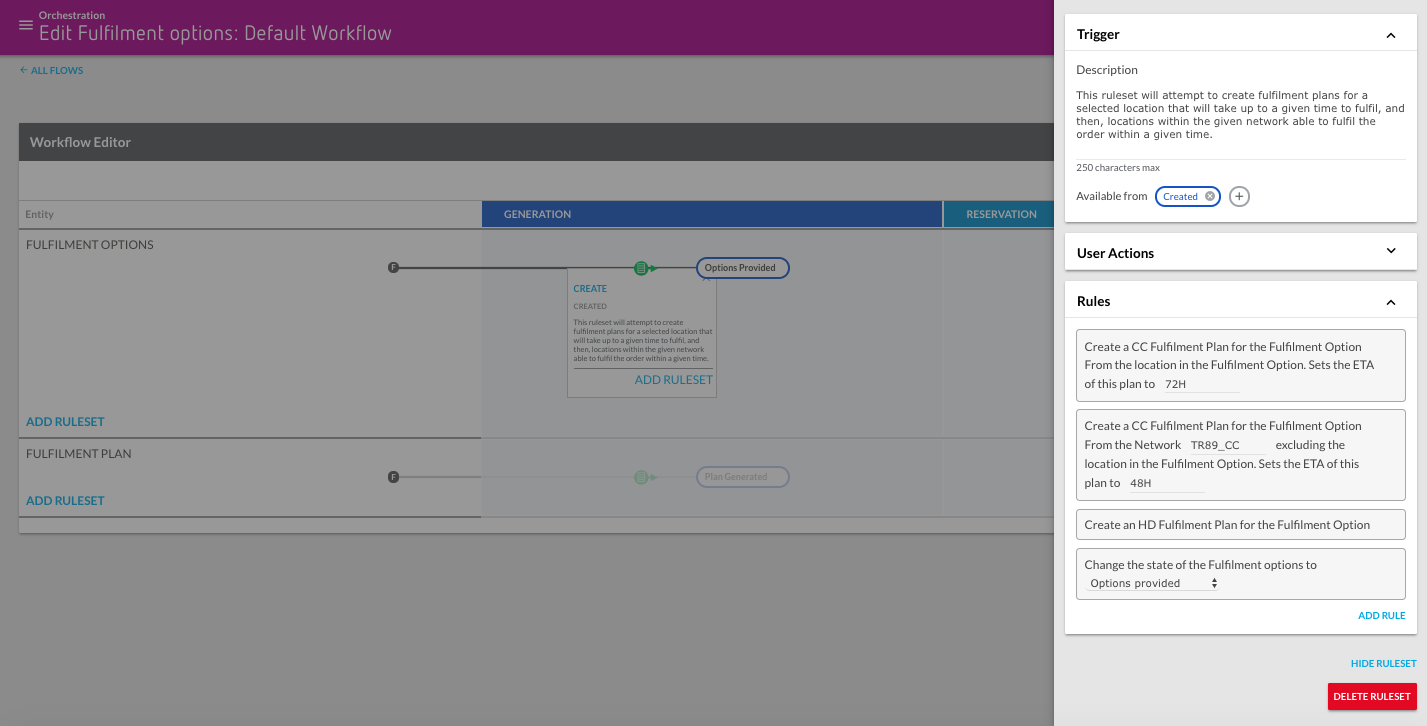 Opening a Ruleset and clicking the Add Rule button brings up the Rule Library panel on the left of the Ruleset panel. A list of all available Rules is provided, based on which Rule Plugins are installed and Active for the given Account and Workflow.Search, add, and/or remove RulesAdding a Rule via JSON workflow
`Rule` array in the Ruleset you want to trigger them. They will be triggered in the order, from top to bottom.| JSON Key | Value Type | Mandatory | Description |
| name | String | YES | Full name of the Rule including the account and plugin name. For example "{{accountName}}.{{pluginName}}.{{ruleName}}" |
| props | JSON Object | NO | Props are required for the rule. These differ depending on the values the rule needs to function. |
1"rules": [
2    {
3        "name": "{{Rule name}}",
4        "props": {}
5    }
6],